

Notewise 4.1: A Better Way To Take Notes, Learn and Work
October is here, and the end-of-year rush is starting to build. Between classes, meetings, deadlines and projects, the last thing you need is more time spent keeping your notes and information organized.
With Notewise 4.1, we’re bringing more of your thinking in one place — so your notes, recordings, documents, research and ideas stay connected and ready when you need them. When everything has context and you can quickly turn what you capture into what comes next, studying and working feels a little lighter.
This release brings some of our coolest updates yet: real-time audio chat lets you ask your meetings questions as they happen, an adjustable Canvas toolbar gives you more control over your handwriting setup, and an improved mobile Canvas makes it easier to work from anywhere. Plus, Interactive Tabs, a redesigned sidebar, website sources and deeper iOS 27 integrations give you even more ways to work with your notes.
The big updates
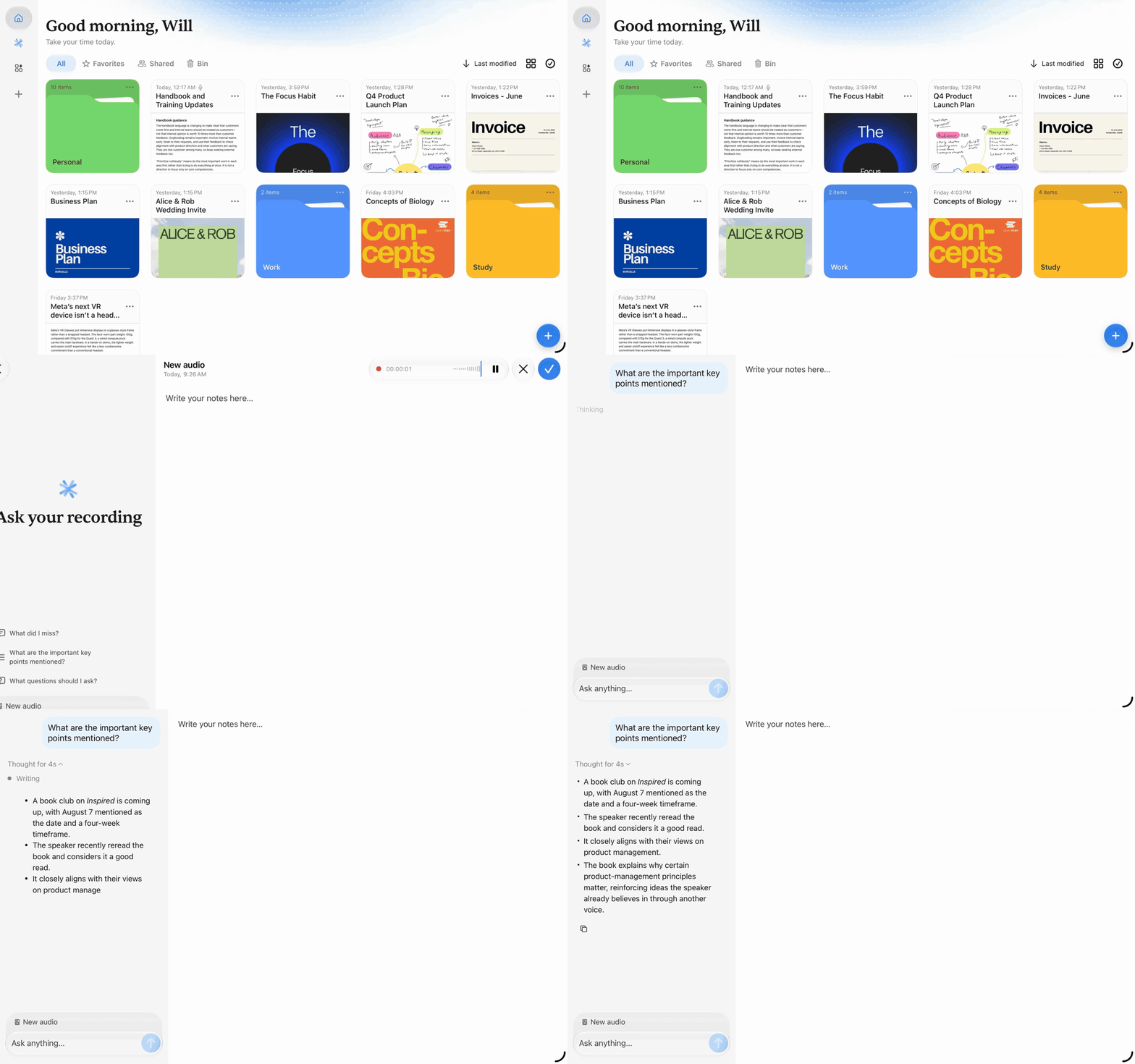
Ask your meeting questions while it’s still happening
Waiting until a meeting ends to search the transcript isn’t always useful. Sometimes you need the answer now. With real-time audio chat, you can ask questions while Notewise is recording a meeting or lecture and get answers based on what has already been said.
Use it to:
Catch up quickly: Missed the last few minutes? Ask for a recap.
Confirm details: Double-check a number before you speak.
Find deadlines: Pull up the date or next step your manager mentioned.
Step away without losing context: Come back and catch up on what you missed.
Notewise becomes more than an AI note-taker you check after the meeting — it becomes a meeting assistant you can use while the conversation is happening.
Put the Canvas toolbar where it works for you
Everyone uses their tablet a little differently. Some people write with their device flat on a desk. Others hold it while reading or annotating. Left- and right-handed users naturally reach for different parts of the screen.
The Canvas toolbar can now be placed on the left or right, in addition to the existing top and bottom positions. Move it to whichever side feels most comfortable and set up your Canvas around the way you naturally handwrite, annotate PDFs, sketch diagrams or plan visually. It’s a small change that gives you much more control over your handwriting workspace.

Take notes once. Turn them into what you need.
Go to class. Join the meeting. Take notes the way you normally would. With Interactive Tabs, Notewise can turn what you capture into something you can study from, share or act on.
For students
Turn class notes into flashcards for active recall
Generate quizzes to test what you know
Create podcasts or Cornell-style notes for easier revision
For professionals
Turn meetings into action items and decision logs
Generate structured meeting notes and summaries
Turn documents into SWOT analyses and other useful formats
You can start with a template from the Notewise gallery or create your own. If you like your study notes, meeting minutes or project updates formatted in a particular way, describe the structure once and Notewise will generate your notes in that format.

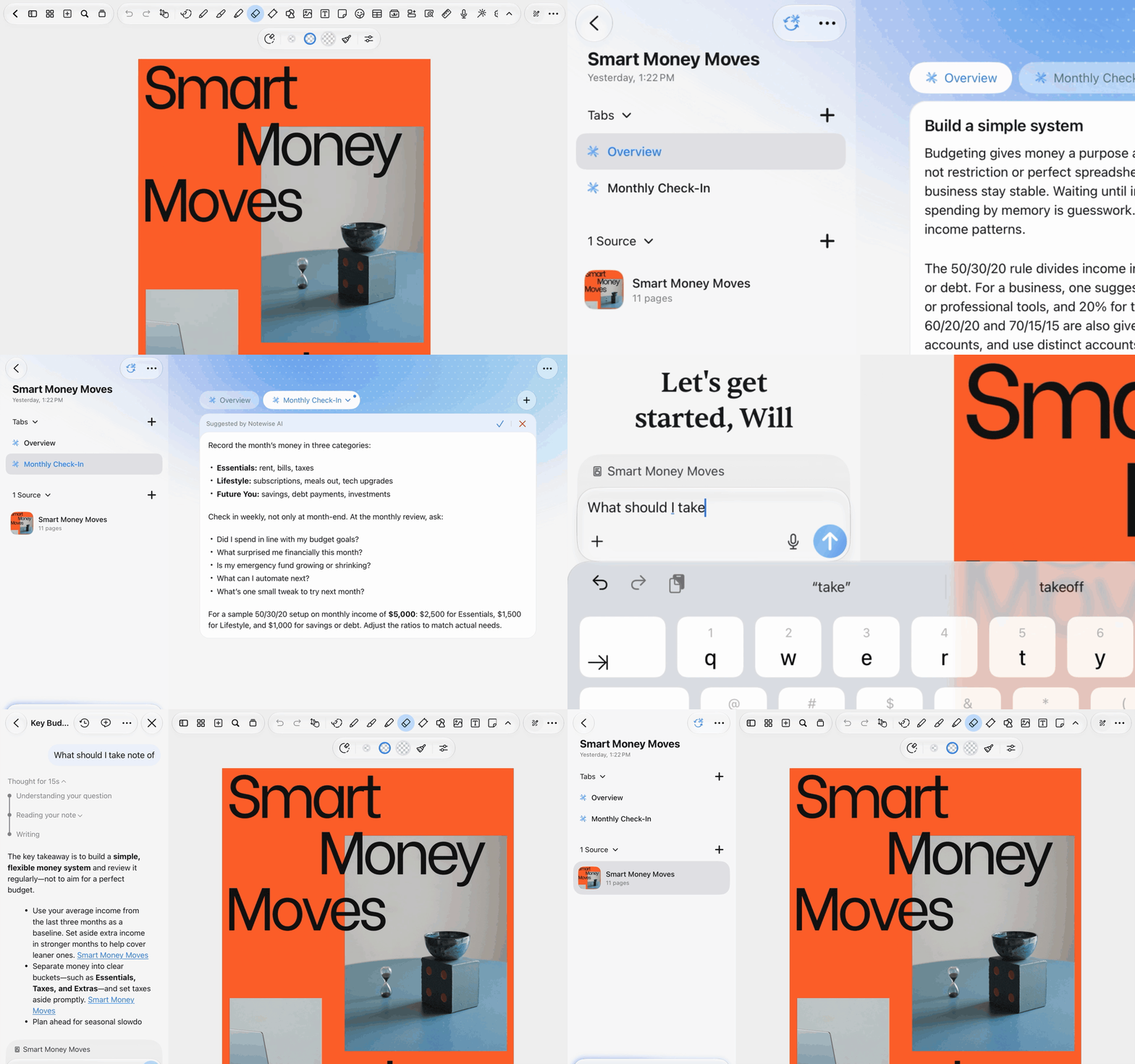
A redesigned sidebar for everything around your note
As notes become richer, keeping everything around them organized should stay simple. The redesigned sidebar gives you one place to:
Manage Sources: Add, rename, rearrange and review everything connected to your note.
Create Interactive Tabs: Turn your notes into quizzes, flashcards, podcasts and more.
Get Quick Overviews: Open your AI overview or create a personalized Interactive Tab.
Access Note Controls: Export, add to Favourites, lock, move or delete a note.
One tap opens everything you need around your note. Another tucks it away, giving you the space to keep writing, reading and thinking without extra controls in the way.
Built for iOS 27
Notewise 4.1 also brings deeper iOS 27 integration, making it easier to capture and find information without breaking what you’re doing.
Create, edit and find notes with Siri AI
Sometimes opening an app is already one step too many. With Siri AI, you can create and edit Notewise notes or pull up information with a quick Siri command.
Capture an idea while walking. Add something to an existing project note while your hands are busy. Ask Siri to find information you saved earlier without manually searching through your notebooks. It makes Notewise easier to reach in the moments when a thought appears — even when the app isn’t already open.
See something. Find what you know about it.
With Visual Intelligence, what you see around you can become a way to find information you’ve already saved. Point your camera at something and use Visual Intelligence to surface relevant content from Notewise.
See a product you’ve previously researched? Find the notes connected to it. Look at something related to a project and jump back into the material you saved earlier. The goal is simple: make the knowledge you’ve already captured more useful in the moment you need it.
Smaller updates worth knowing
A better Canvas experience on your phone
Your tablet might be where you do most of your handwriting, but it isn’t always the device you have with you. We’ve improved the Canvas layout on phones and compact screens so there’s more room for your content and less interface in the way.
Add images to Text and Audio Notes
Text and audio notes can now hold more than words. Add images directly to Text and Audio Notes when a visual reference explains something better than another paragraph.
Drop a diagram into typed class notes. Add a screenshot to a project update. Keep the slide or whiteboard photo that was being discussed alongside your meeting recording. Text Notes move closer to complete documents, while Audio Notes can become a fuller record of everything that happens around a conversation.
And with auto-save, your information is saved as you work.

Better keyboard, mouse and touchpad support
For people who use Notewise with a keyboard, mouse or touchpad, Canvas controls should now feel more natural. We’ve improved support across desktop-style input methods, making it easier to move around your Canvas and work between handwriting, typing and other tools.
Bring websites into your notes as sources
Research rarely happens entirely inside a notebook. An article might be in your browser, supporting documents somewhere else and your own thinking inside Notewise. Moving between them makes it harder to keep the full picture together. Notewise 4.1 introduces websites as a source.
Create a new note directly from a website link, or add a webpage as a source to an existing note. The information from the web can then sit alongside your own notes, recordings, documents and other material. Researching a topic for class? Keep the relevant websites together with your lecture notes and PDFs. Reviewing a client or competitor? Bring those pages into the same place as your own analysis.

One place for every way you think
A note-taking system shouldn’t make taking notes more complicated. It should make it easier to start with whatever is in front of you and keep moving from there.
Have an idea? Type it into Notewise. Walking into a meeting? Record it. Reading a client brief? Open the PDF and annotate it. Planning a campaign or designing an ad? Spread the ideas out on Canvas and brainstorm visually. Researching something new? Bring in the websites, documents and references behind it. And when the information is already there, turn it into what you need next — a summary, action items, flashcards, a quiz, a podcast or your own custom format.
That’s the direction behind Notewise 4.1: a place where every kind of note can stand on its own, while everything you capture can stay connected when you need to bring your thinking together. Open Notewise for the small thoughts and the big ones. Capture them in the way that feels natural, keep the context with them, and turn what you know into your next step.
